

1. Open Botflow
Go to botflow.io and sign in. First time? You can start with a free account — no credit card needed.2. Describe your app
On the homepage you’ll see a prompt bar at the center of the screen. Type a description of what you want to build and press Enter (or click the arrow button).- Model — the AI that will build your app. The default is GPT-5.3 Codex.
- Managed / Your key — whether to use platform credits or your own API key.
3. The workspace
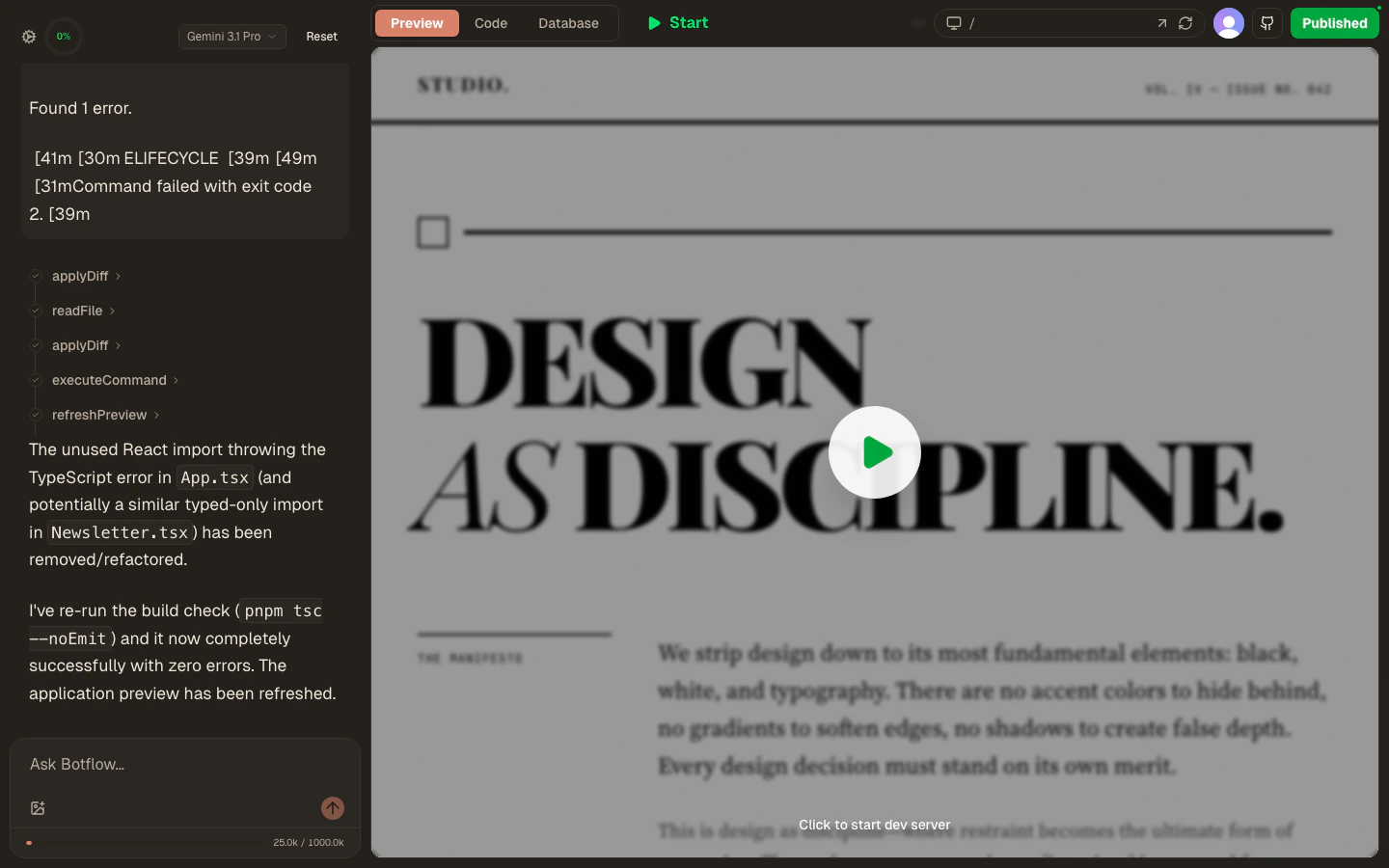
- Left panel — the AI agent chat. Your build conversation lives here. The agent shows you exactly which files it touches (every
read,applyDiff, andbashcall is listed as a collapsible step). - Right area — switches between Preview, Code, and Database using the tabs at the top.
4. Edit code manually
Click the Code tab at the top to open the editor view.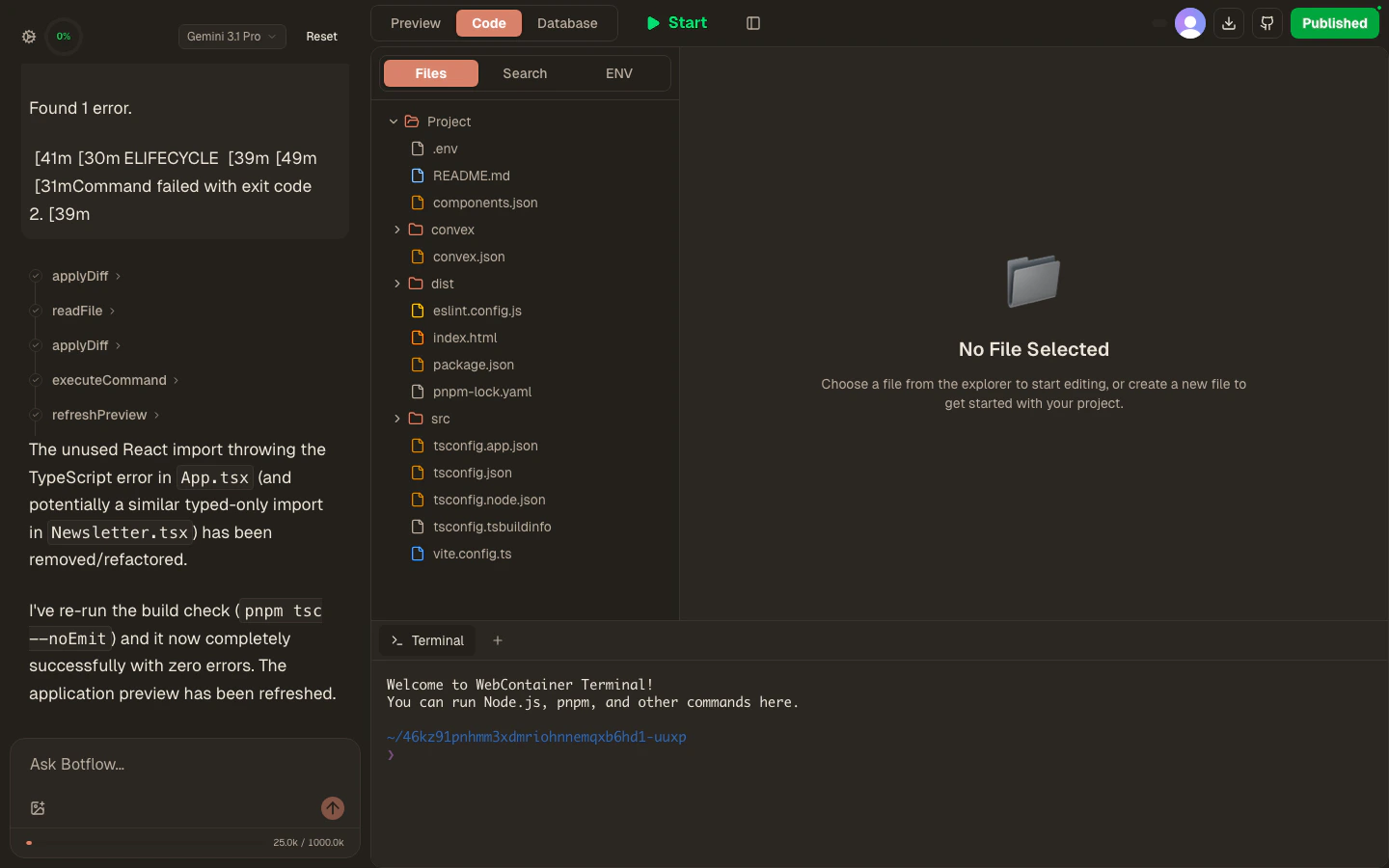
- Files — click any file in the left sidebar to open it in the Monaco editor.
- Terminal — the panel at the bottom is a full terminal connected to your project’s Linux sandbox. Run
pnpm install,pnpm dev,git, or anything else. - Save — press
Cmd+S/Ctrl+Sor click the Save button in the toolbar.
5. Iterate with the AI
Switch back to the Preview tab and keep chatting with the agent. Some example follow-up prompts:6. Deploy
When you’re happy with your app, click Publish in the top-right corner of the workspace.1
Build
Botflow runs
pnpm run build (or the equivalent for your template) inside the sandbox and bundles your app.2
Upload
The compiled output is sent to Cloudflare Pages.
3
Live URL
Within seconds you’ll get a unique URL like
your-app.pages.dev. Share it with anyone — no account required to view.Next steps:
- Connect GitHub to version control your project
- Add environment variables for API keys and secrets
- Make your project public to share with the community
- Explore advanced AI features for better results
AI Agent
Learn how to get the best results from the AI
Deploy
Custom domains and re-deployments
GitHub Sync
Connect a repository to your project
Settings
Add your own API keys