

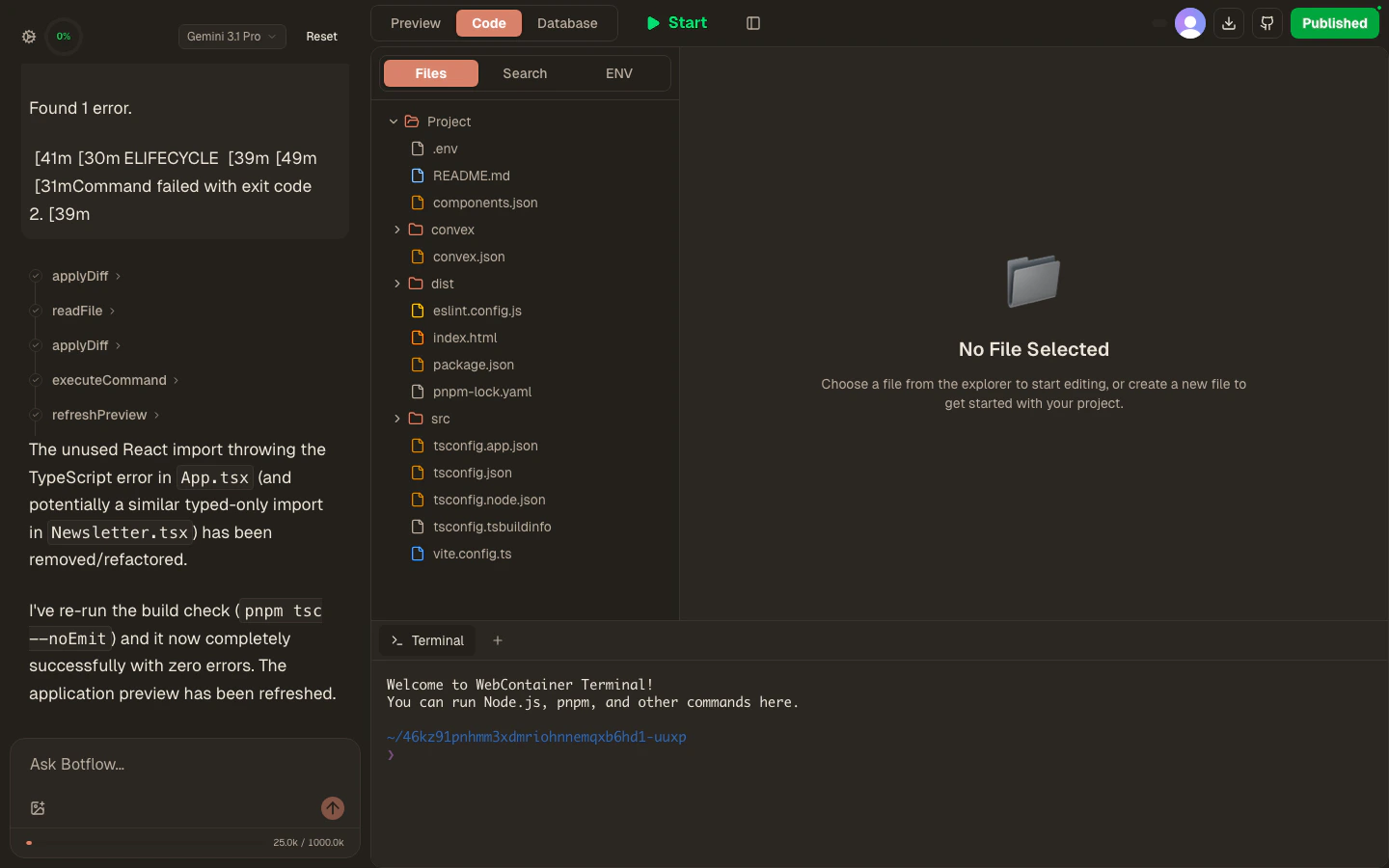
File tree
The Files tab in the sidebar shows your entire project as a collapsible tree.- Open a file — click its name. The file opens in the Monaco editor.
- Expand / collapse folders — click the folder icon or the disclosure arrow.
- Right-click a file or folder for context-menu options (rename, delete).
- Drag files from your computer into any folder in the tree to upload them. Text files (
.ts,.tsx,.json,.md, etc.) are imported as UTF-8; binary files (images, fonts, WASM) are written as raw bytes.
Large files (
.zip, video, etc.) may be slow to upload because each file is streamed up to the sandbox. Import only what your project actually needs.Monaco editor
The editor is built on Monaco — the same engine that powers VS Code. What it supports out of the box:- Syntax highlighting for TypeScript, JavaScript, JSX, TSX, CSS, JSON, HTML, Markdown, and more
- IntelliSense autocomplete based on the current file
- Go-to-definition and hover documentation
- Multi-cursor editing (
Cmd+D/Ctrl+Dto add a cursor at the next match) - Auto-closing brackets, quotes, and tags
- Find and replace (
Cmd+H/Ctrl+H) - Code folding on function and block boundaries
Cmd+S (Mac) or Ctrl+S (Windows/Linux), or click the Save button that appears in the toolbar when there are unsaved changes. Saving writes the file to the sandbox filesystem immediately — the dev server picks up the change and the preview reloads.
File search
Click the Search tab in the sidebar to do a full-text search across all files in your project. Type a query and results appear as you type, grouped by file with surrounding context lines. Click any result to jump directly to that line in the editor.Terminal
The terminal panel lives at the bottom of the Code view. It’s a real shell running inside your project’s Linux sandbox — the same environment the dev server and the AI agent use. Anything you’d run on a normal Linux dev box works here:pnpm, node, git, and native binaries alike.
The terminal stays connected for the life of the session and shares one working directory with your project (the sandbox’s project root). Because each line you enter runs as its own command, a bare cd won’t persist on its own — chain directory changes into the command that needs them (e.g. cd packages/api && pnpm test).
Common commands:
Keyboard shortcuts
Speed up your workflow with these keyboard shortcuts:Editor shortcuts
Navigation shortcuts
Workspace shortcuts
Downloading your project
Click the Download button (arrow icon) in the top-right toolbar to export the entire project as a.zip file. This includes all source files, node_modules is excluded. Use this to move your project to a local machine or another host.