Documentation Index

Fetch the complete documentation index at: https://botflow.io/docs/llms.txt

Use this file to discover all available pages before exploring further.

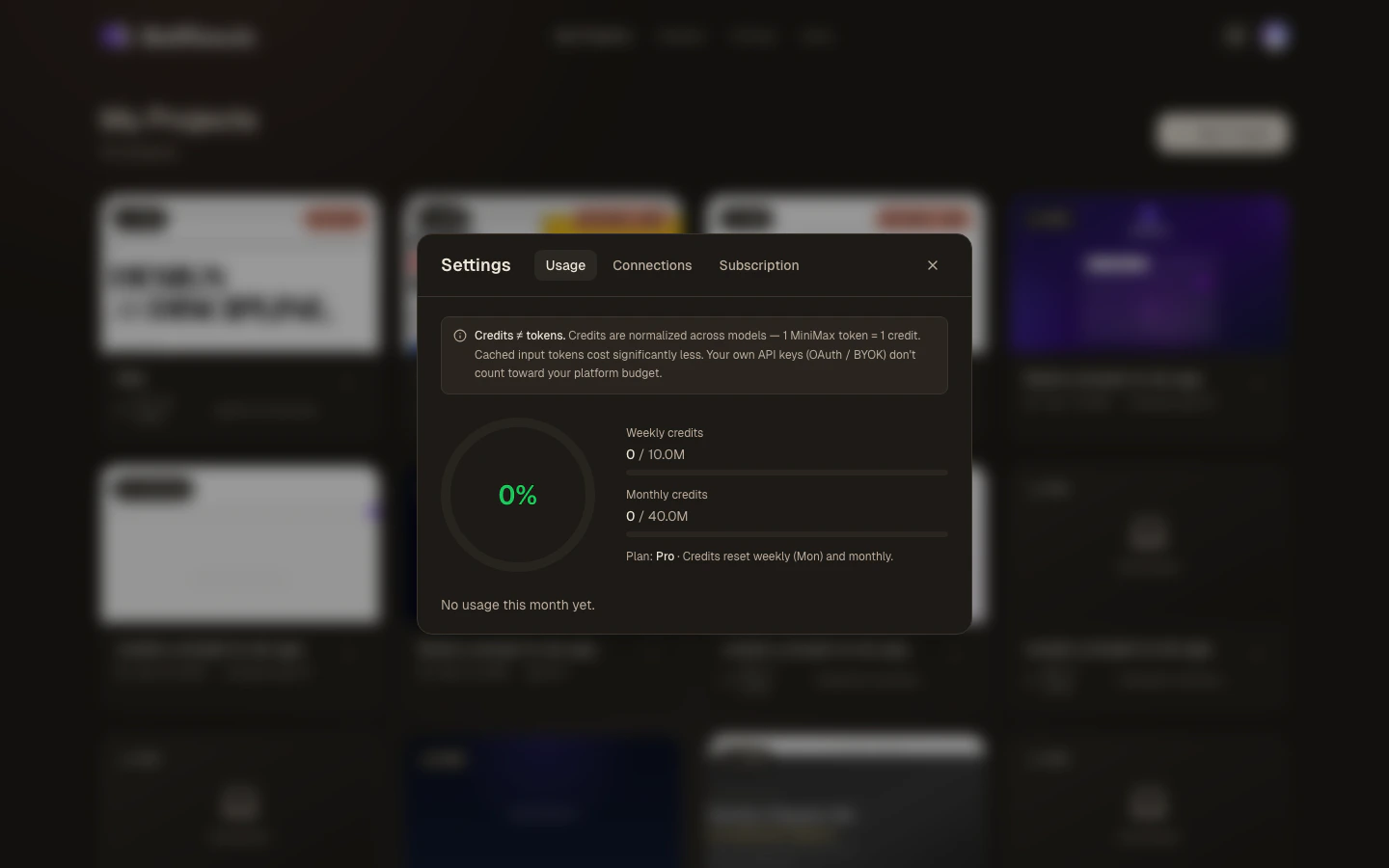
Settings modal — Usage tab Open Settings by clicking the gear icon in the top-left of the workspace or the top-right of the Projects page. The settings modal has three tabs: Usage, Connections, and Subscription.

Usage

The Usage tab shows how much of your platform credit budget you’ve consumed.
  • Credit gauge — a circular progress indicator showing your percentage used
  • Weekly credits — credits consumed this week vs. your weekly limit
  • Monthly credits — credits consumed this month vs. your monthly limit
  • Plan indicator — your current plan (Free, Pro, or Max)
Credits are normalised across models: 1 MiniMax-M2.5 token = 1 credit; Claude Sonnet 4 and GPT-5.3 tokens are weighted proportionally. Cached input tokens cost significantly less. Requests made with your own API keys or OAuth do not count toward your platform budget. Credits reset on a rolling weekly and monthly basis (Monday and the 1st of the month).

Connections

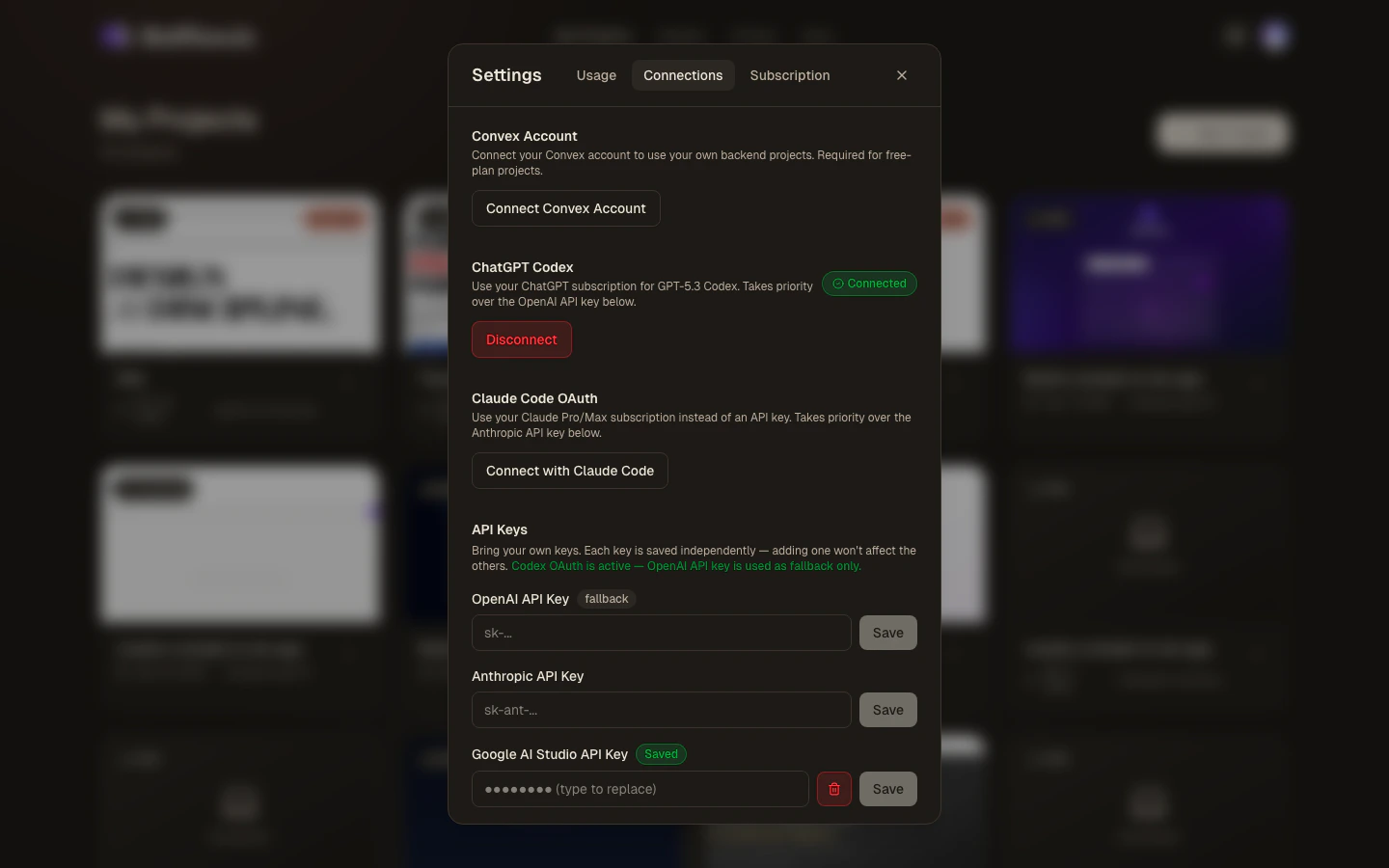
Settings modal — Connections tab The Connections tab is where you wire up model providers and backend services.

API keys

Paste a key for any provider to use that provider’s models without spending platform credits:
ProviderKey formatModels unlocked
OpenAIsk-...GPT-5.3 Codex, GPT-5.4
Anthropicsk-ant-...Claude Sonnet 4, Claude Opus 4.7
Google AI StudioAIza...Gemini 3.1 Pro
Fireworks AIfw_...MiniMax-M2.5, GLM-5.1, Kimi K2.6
Moonshotmoonshot-...Moonshot models
To save a key:
  1. Paste it into the input field next to the provider name.
  2. Click Save.
To remove a saved key, click the trash icon next to the provider. The key is deleted from Botflow’s servers immediately.
Your keys are stored encrypted on Botflow’s servers and are never exposed in the browser or in logs. Even so, treat them like passwords — avoid using production keys for personal experiments, and rotate them if you suspect exposure.

Claude OAuth

Instead of an API key, you can sign in to your Anthropic account directly:
  1. Click Connect with Claude.
  2. Review the permissions and click Authorize.
  3. You’ll be redirected back to Botflow. Claude models are now available without an API key.
The OAuth token is refreshed automatically. To disconnect, click Disconnect Claude.

Codex OAuth

Connect your OpenAI account via a device-code flow:
  1. Click Connect with Codex.
  2. Botflow displays a short user code (e.g. ABCD-1234).
  3. Open openai.com/device in any browser and enter the code.
  4. Approve the authorisation in your OpenAI account.
  5. Botflow polls for completion and confirms when the token is saved.
GPT-5.3 Codex and GPT-5.4 will then use your OpenAI account directly.

Convex OAuth (Free plan)

Free-plan users who want a Convex backend connect their own Convex account here:
  1. Click Connect Convex.
  2. Paste your Convex deployment URL from dashboard.convex.dev.
  3. Click Save.
Botflow injects this URL as the VITE_CONVEX_URL environment variable automatically.

Subscription

The Subscription tab shows your current plan and lets you upgrade, downgrade, or cancel. The pricing table is embedded directly — no need to navigate to a separate page.
If you’re inside the workspace, clicking Subscription opens the pricing page in a new tab instead of embedding it. This is because the workspace uses strict browser isolation (COEP headers) that prevents third-party payment iframes from loading inline.
See Pricing for a full breakdown of what each plan includes.

Keyboard shortcut

You can open Settings from the keyboard: focus the workspace and press ? to see all keyboard shortcuts, including the one for Settings.