> ## Documentation Index
> Fetch the complete documentation index at: https://botflow.io/docs/llms.txt
> Use this file to discover all available pages before exploring further.
# Explore
> Browse public projects built by the Botflow community, open them in your workspace, and remix them as your own.
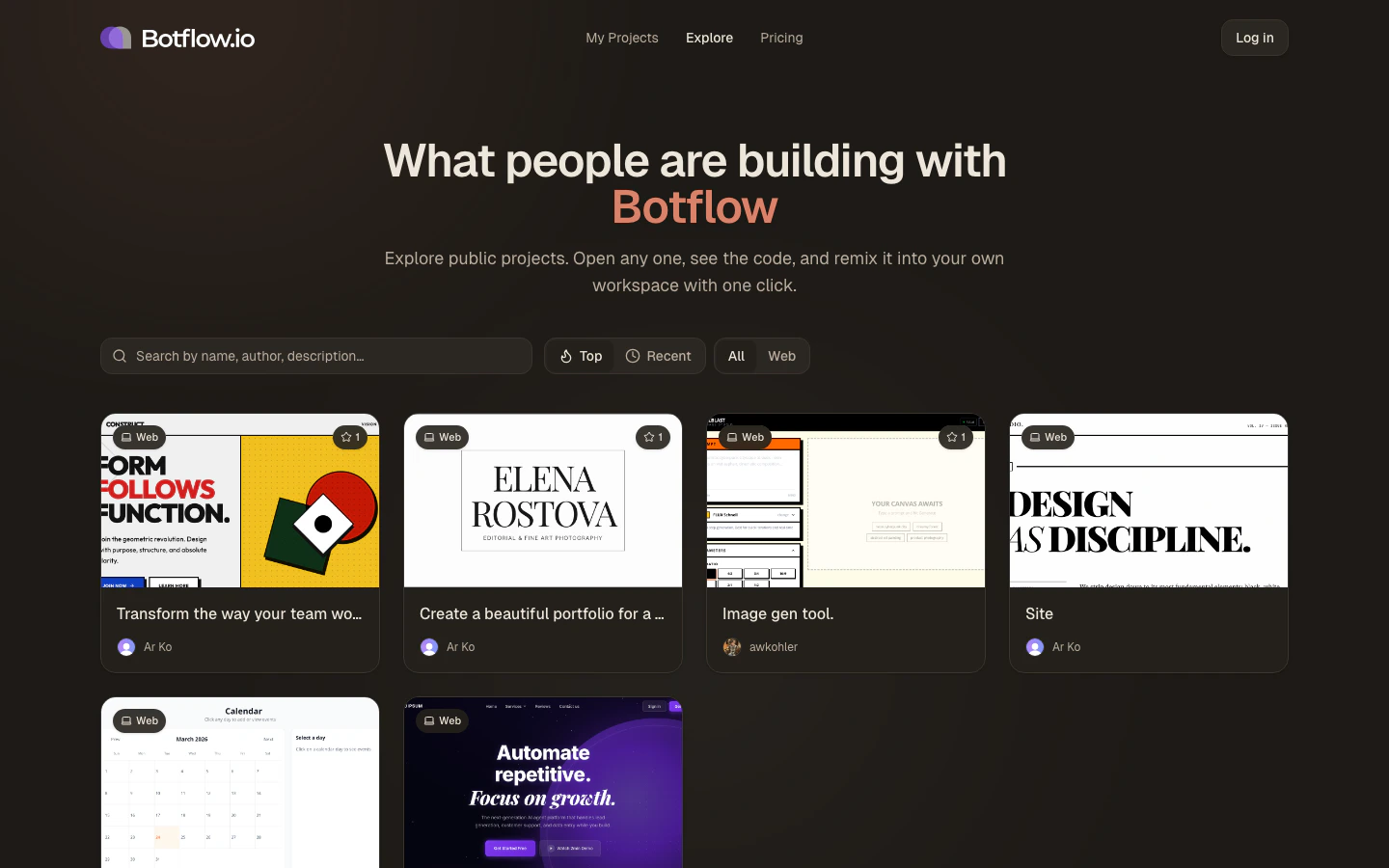 The **Explore** page at [botflow.io/explore](https://botflow.io/explore) is a public gallery of projects that creators have chosen to share. You can browse, search, and open any project directly — no account required to view, though you'll need to sign in to fork one into your own workspace.
## Browsing projects
Projects are displayed in a card grid. Each card shows:
* A **thumbnail** — an auto-generated screenshot of the running app
* The **project name** and author
* A **star count** reflecting how many people have starred it
* The **platform type** (e.g. Web)
### Sorting
Use the sort toggle in the top-right of the controls bar to switch between:
* **Top** — ordered by star count, highest first
* **Recent** — ordered by last-updated time, newest first
### Filtering by platform
The platform filter lets you narrow the grid to a specific template type:
* **All** — show every public project
* **Web** — show only Vite + Convex web projects
### Searching
Type in the search box to filter the visible projects by name, description, or author name. The search runs locally against the current page of results — switch to **Recent** or **All** first if you're looking for something specific that might not be in the top results.
## Opening a project
Click any card to open the project's public page. From there you can:
* **Preview the live app** running in its sandbox
* **Read the project description** the author wrote
* **Open in workspace** to fork the project into your own account
When you open a project from Explore, a full copy is made in your account — including all source files. The original project is not affected.
You need to be signed in to fork a project. If you're not signed in, clicking **Open in workspace** will prompt you to log in or create a free account.
## Making your project public
To have your own project appear on the Explore page:
1. Go to your [Projects page](https://botflow.io/projects).
2. Right-click (or open the context menu on) the project card.
3. Click **Make public**.
You can optionally add a public description that appears on the project's public page. To take it back down, choose **Make private** from the same menu.
Star counts are a ranking signal — the more stars a project gets, the higher it appears in the **Top** sort. Share your project link to get more visibility.
The **Explore** page at [botflow.io/explore](https://botflow.io/explore) is a public gallery of projects that creators have chosen to share. You can browse, search, and open any project directly — no account required to view, though you'll need to sign in to fork one into your own workspace.
## Browsing projects
Projects are displayed in a card grid. Each card shows:
* A **thumbnail** — an auto-generated screenshot of the running app
* The **project name** and author
* A **star count** reflecting how many people have starred it
* The **platform type** (e.g. Web)
### Sorting
Use the sort toggle in the top-right of the controls bar to switch between:
* **Top** — ordered by star count, highest first
* **Recent** — ordered by last-updated time, newest first
### Filtering by platform
The platform filter lets you narrow the grid to a specific template type:
* **All** — show every public project
* **Web** — show only Vite + Convex web projects
### Searching
Type in the search box to filter the visible projects by name, description, or author name. The search runs locally against the current page of results — switch to **Recent** or **All** first if you're looking for something specific that might not be in the top results.
## Opening a project
Click any card to open the project's public page. From there you can:
* **Preview the live app** running in its sandbox
* **Read the project description** the author wrote
* **Open in workspace** to fork the project into your own account
When you open a project from Explore, a full copy is made in your account — including all source files. The original project is not affected.
You need to be signed in to fork a project. If you're not signed in, clicking **Open in workspace** will prompt you to log in or create a free account.
## Making your project public
To have your own project appear on the Explore page:
1. Go to your [Projects page](https://botflow.io/projects).
2. Right-click (or open the context menu on) the project card.
3. Click **Make public**.
You can optionally add a public description that appears on the project's public page. To take it back down, choose **Make private** from the same menu.
Star counts are a ranking signal — the more stars a project gets, the higher it appears in the **Top** sort. Share your project link to get more visibility.